

Signing In
No Passwords
Section titled “No Passwords”Trusted Codes has no portal password. You sign in with a link we send to your email address, or with Google or Apple. There is nothing to forget and nothing to steal from us.
Signing In
Section titled “Signing In”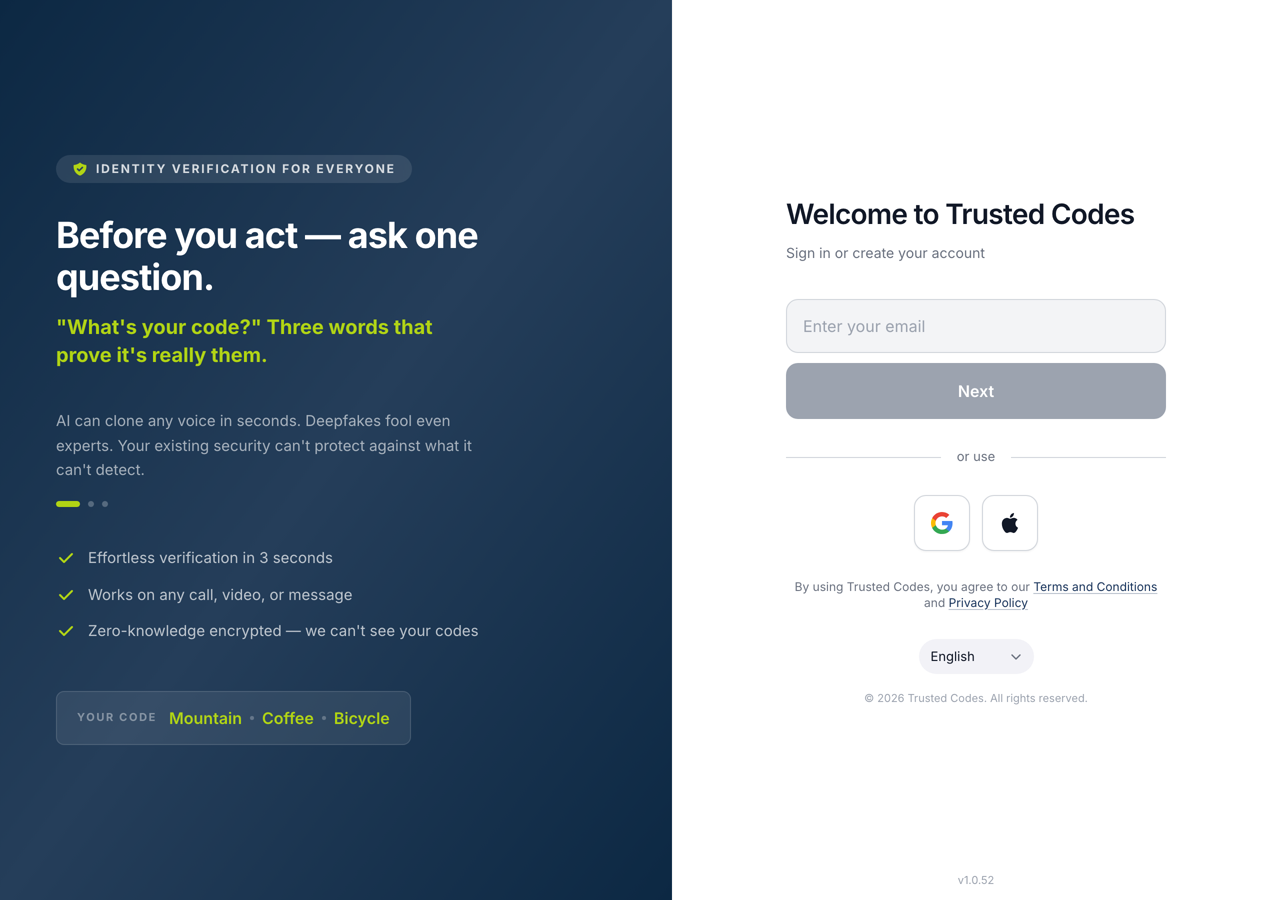 1234
1234- 1Your address, for a sign-in link. There is no password to set.
- 2Continue with email. A known address gets a sign-in link; an unknown one moves on to creating an account.
- 3Continue with Apple and Continue with Google. An Apple relay address is stopped, because nobody can reach you at one.
- 4Sets the language of the portal before you sign in.
The page first asks How will you sign in? and says why it matters: choose once, and use the same way every time, also in the app on your phone.
- Continue with Apple — Face ID or your Apple password. No extra code.
- Continue with Google — your Google account. No extra code.
- Continue with email — enter your address; each time, we send a sign-in link to it.
If the address already has an account, we send a sign-in link and the page says Welcome Back!. Open the link and you are in. The link lasts one hour and works once. Send Again sends a new one. Use a different email starts over.
Check the spam folder if the message is slow.
Creating an Account
Section titled “Creating an Account”If the address has no account, the page moves straight on to Create Account.
Enter Your Full Name — at least two characters — and press Register. There is no field for a referral code at the moment. A code carried by an invitation link is still applied.
We then send a registration link to the address. The account exists once you open it.
Disposable addresses are refused with “Disposable email addresses are not allowed”. If you ask for too many links in a row, the page says how many minutes to wait.
If You Were Invited
Section titled “If You Were Invited”The page shows who invited you, with their name and picture, and says Save your connection with that person. The invitation is kept for you while you install the app.
An invitation by email carries proof of your address, so there is no second email. The page opens with your address already filled in and says that you sign in with this address from now on, also in the app. Enter Your name — the person who invited you sees it — and press Create my account.
An invitation from somebody’s contact page says what happens next: you are connected as soon as you open the app, or the owner confirms the request first.
Apple Private Relay
Section titled “Apple Private Relay”If you sign up with Apple and hide your address, the portal stops and says Private Email Detected. Nobody can find you at a relay address, and some messages will not arrive.
Go back returns you to the start, where you can use Google or your own address instead. Continue anyway carries on with the relay address; the dashboard then offers to add a real one later.
Staying Signed In
Section titled “Staying Signed In”The portal signs you out after a period without activity, and it checks the session again every time you come back to the browser tab. The length is a server setting rather than a fixed number, so it can differ between one server and another.
Signing out of the portal does not sign you out of the mobile app.