

People and Roles
Who Sees It
Section titled “Who Sees It”Team is offered to a member whose role may manage people. A role without that permission does not see the entry, and opening the address directly answers Access Denied with You don’t have permission to manage the team.
Where It Is
Section titled “Where It Is”Under People & partners in the menu, the first of the two.
What It Shows
Section titled “What It Shows”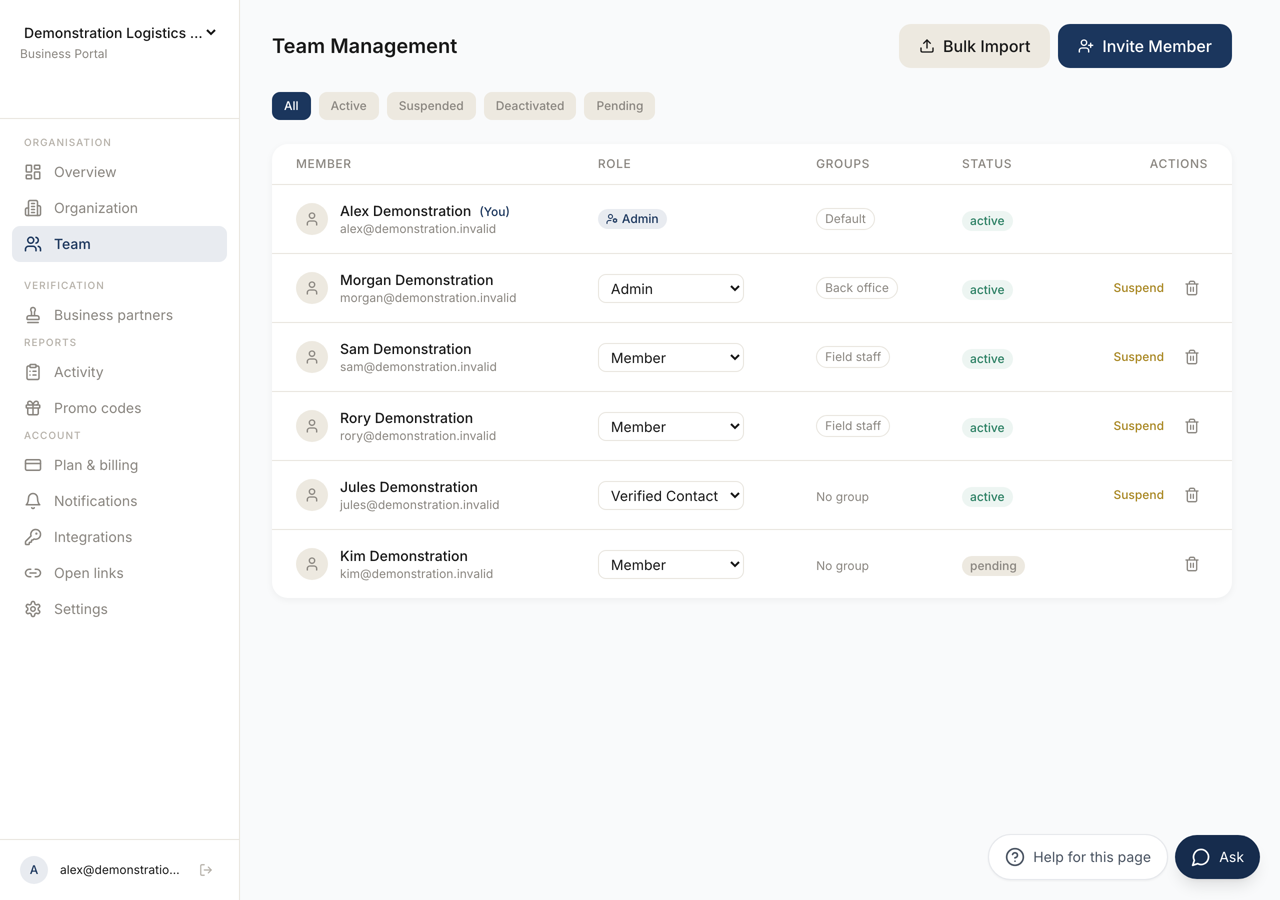 123
123- 1Opens the invitation form. The person appears as pending until they accept.
- 2Every state of a membership, including the ones that are not active.
- 3Who belongs to the organisation. Selecting a row opens that person's panel.
A table of everyone in the organisation, with the columns Member, Role, Groups, Status and Actions. Your own row is marked (You).
Above the table are filters: All, Active, Suspended, Deactivated and Pending. A member who has been invited and has not yet joined sits under Pending.
A member with no role assigned reads No role. A member in no group reads No group. With nobody at all the table says No team members yet. Invite someone to get started.
Inviting Someone
Section titled “Inviting Someone”Invite Member opens Invite Team Member. It asks for an Email Address and a Role, and offers an optional Display Name. Send Invite sends the invitation, and the person appears in the table as pending until they accept.
Bulk Import opens Bulk Invite Members for more than one at a time. It is a table with one member per row and three columns: Email address, Display name and Role. Only the address is required. The role column starts on your organisation’s ordinary member role, named in the cell, and you change it per row.
Add 5 rows makes room for more, and the counter reads how many of the fifty allowed rows are ready to invite. A row with no usable address is counted and named rather than silently dropped.
Download template gives you the same three columns as a file to fill in elsewhere, and Upload a filled-in file reads it back into the table. You still see every row and can correct it before Import.
When an Invitation Is Refused
Section titled “When an Invitation Is Refused”Two refusals are about the plan rather than the person, and each names what to do.
With no active plan, no members can be added at all. Choose a plan under Plan and Billing.
With every seat in use, the message names how many seats the plan has. Remove a member, or move to a larger plan.
A Member’s Panel
Section titled “A Member’s Panel”Selecting a row opens a panel for that person.
Groups lists the groups they are in, and offers Add to a group and Remove from. Somebody in none reads In no group yet — this person only gets what the plan gives.
What this person can do resolves their capabilities, and labels each one with where it came from: From your plan, From their role, From the group, Personal exception for this account, or adjusted by a rule. Somebody in several groups gets the stricter value of those groups, so a second group can narrow what the first one allowed.
The panel also shows Account, Joined, Last active and Devices.
The panel reads these values, with one exception it can also write.
Personal exception applies a policy to this one person, with an optional end date. It applies instead of every group they are in rather than adding to them, and on the end date it stops by itself. What a policy is, and which ones exist, is on Organisation and Groups.
Everything else the panel shows is read only. Values that come from a group are changed on Organisation and Groups, and the panel says so.
Changing and Removing
Section titled “Changing and Removing”The row’s actions change a member’s role, suspend them, activate them again, or remove them.
Suspending keeps the member in the organisation and stops their access. Remove member takes them out of it, and asks you to confirm first.