

Signing In
Three Ways to Sign In
Section titled “Three Ways to Sign In”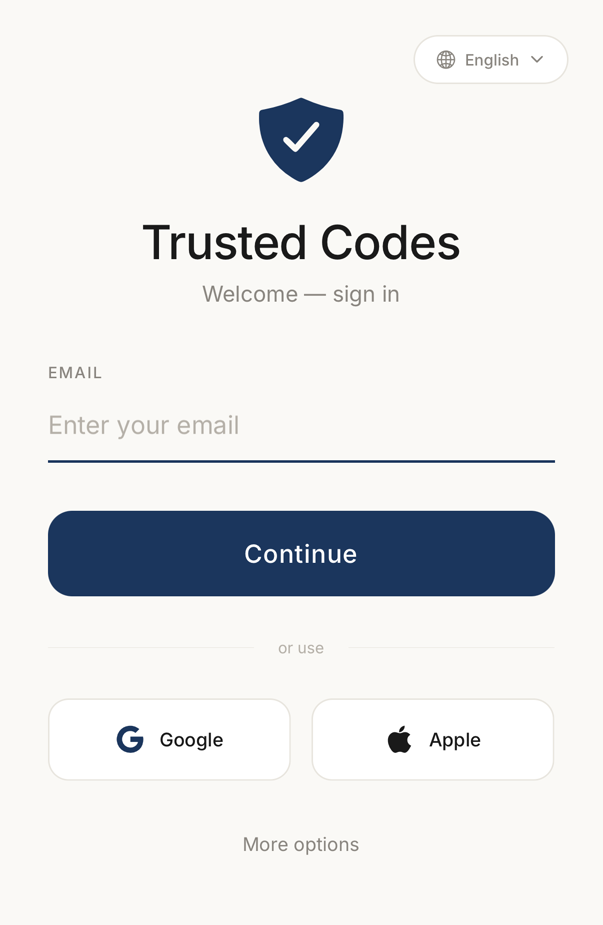 1234
1234- 1The language of the app, and of the codewords your connections read back to you. Set it before you sign in.
- 2Your email address. The account belongs to it, and other people invite you by it.
- 3A Google or an Apple account you already have, instead of an email link.
- 4The other ways in: our demonstration account, and a server run by somebody else.
For a magic link, enter your email address and tap Continue, then open the email we send and tap the link in it.
Tapping the Google button signs you in with your Google account. On iOS, the Apple button signs you in with your Apple account and uses Face ID or Touch ID to do it.
None of the three asks for a password. You land on your home screen.
Biometric Protection
Section titled “Biometric Protection”You can make the app ask for your fingerprint or your face before it opens. If somebody else picks up your phone, they get no further than that check.
Turn it on in Settings → Face ID & app lock. It is a setting, not something signing in switches on for you.
With the Standard mode your device passcode still works when the biometric check fails. Strict biometric removes that fallback.
Missing Your Sign-In Email
Section titled “Missing Your Sign-In Email”- Check your spam or junk folder, because sign-in emails are sometimes filtered
- Check the spelling of the address you entered
- Go back and request another link
- Wait a few minutes, because email can be slow
- Write to support@trusted.codes if it keeps happening
Signing In on a New Device
Section titled “Signing In on a New Device”When you sign in on a new phone or tablet, the app sets up security keys unique to that device on its own. Sign in the way you normally do.
Where your account includes it, Settings → Manage account → Devices and sessions lists every device signed in and every registered device, in your account portal.