

One Connection
What You See Here
Section titled “What You See Here”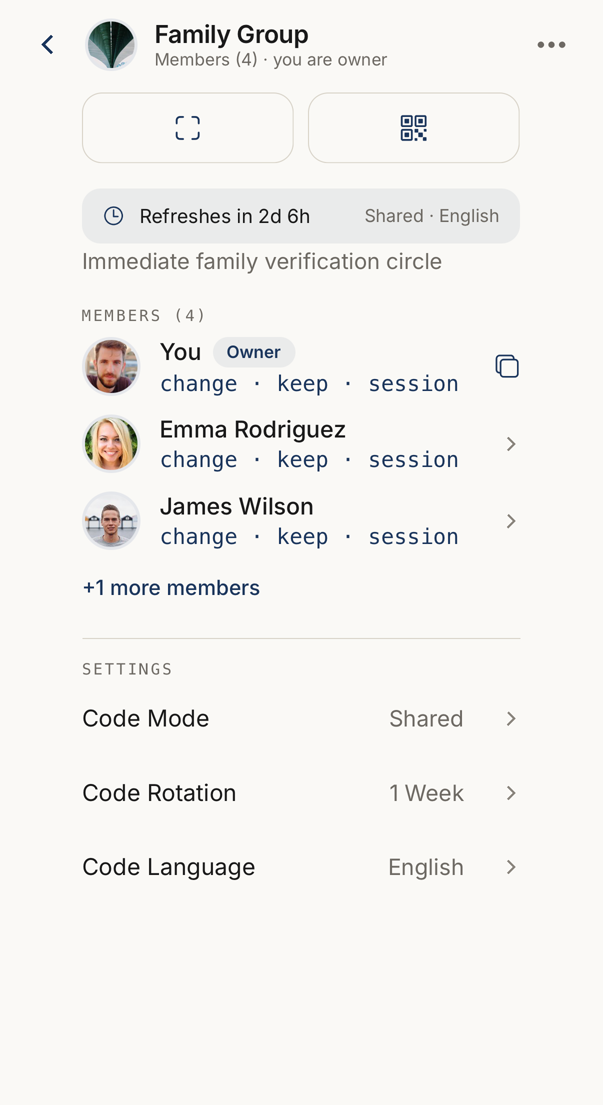 12345
12345- 1The connection's name, how many members it has, and whether you own it.
- 2Favourite, tags, saving the settings as a template, renaming, and leaving or deleting the connection.
- 3How long the current words last.
- 4Every member with their own three words. Yours carries a control that copies them.
- 5The owner decides the code mode, how often the words change, and their language.
The header carries the connection name, Members (N) and whether you are its owner or a member.
Then comes the member list. Your own row shows your words under MY CODEWORD. A member who has not accepted yet carries a Pending mark, and the person who owns the connection carries Owner.
At the bottom, under Code Rotation, a line gives the time until the next rotation. That is how long the current codewords last.
Verifying Someone
Section titled “Verifying Someone”Every member has their own three words inside this connection, computed on the device from data only the members hold. Comparing them is the verification.
Tap the member you are verifying. Their words appear, and you read them out or compare them.
Scan opens the camera for their QR code, and My QR shows yours. A scan tells you whether the code belongs to a member of this connection, to a different connection, or to nothing.
The clock beside a member’s words opens their previous codewords from the bottom of the screen, newest first, each with the date and time it was valid. Codewords rotate, so a message sent just before a rotation shows the words from before it. By default one previous codeword is shown; the operator of your server sets how many. Older words are not shown and do not check anywhere. For a message that someone reads later, a seal is the better tool.
A Meeting Check
Section titled “A Meeting Check”Check people in, the filled button with two people, starts a meeting check for this connection: a timed session for verifying several people in one sitting. Any member may start one where the plan includes it, and only one runs for a connection at a time.
When somebody else runs a check that includes this connection, a card appears here: Meeting check in progress, with I’m here and the time until it closes. Tap I’m here to confirm that you are present. The card then says You are checked in. No words are compared, and you need no plan to do it.
Settings on This Screen
Section titled “Settings on This Screen”Under Settings you may find Code Mode, Code Rotation, Code Language and Require Biometric.
You see only the rows your plan includes. A row that is absent is a capability you do not hold, and the screen hides it rather than showing a control that does nothing. Code Rotation and Code Language appear only while the code mode is Dedicated or Shared.
The ⋯ Menu
Section titled “The ⋯ Menu”The button at the top right holds Favorite, Tags, Edit (Customize when you are not the owner) and Delete Connection, or Leave Connection if the connection is not yours.
Edit changes the photo, the Name and the Description. As a member your changes are yours alone, and Reset to default puts the owner’s version back.
Where your plan includes connection templates, the menu also holds Save settings as template. It asks only for a name, filled in with the connection’s name. The template keeps the code mode, rotation, language, biometric check, instant add, tags and favourite. It never keeps the members. When a template already has exactly these settings, the app names it and makes no new one.
Right after you create a connection, the Invitation sent sheet offers Save as template next to OK, unless a template already has exactly these settings.
Swiping a Member Row
Section titled “Swiping a Member Row”Swipe a row for Bump, which reminds somebody who has not accepted, and, if you are the owner, for Remove.
Removing a member takes their access away. It does not delete the connection.
Adding a Member
Section titled “Adding a Member”If you own the connection, Add member sits below the member list. It opens a sheet where you type an email address or use Choose from contacts. Send invitation sends it.
The person then appears in the list as Pending until they accept. When the device has no connection to the server, the invitation waits on the device and goes out once you are online again. Swiping the pending row withdraws it.
In Personal mode the sheet says that the person sees their own codeword for you after they accept.
When the connection has as many members as your plan allows, the row reads N of N members and opens nothing. Reaching your number of contacts does not stop you from adding someone you already have in another connection.
When a connection between two people gains a third, the app asks whether you want to rename it. The other members receive a notice whenever someone joins.