

Downloads
What It Shows
Section titled “What It Shows”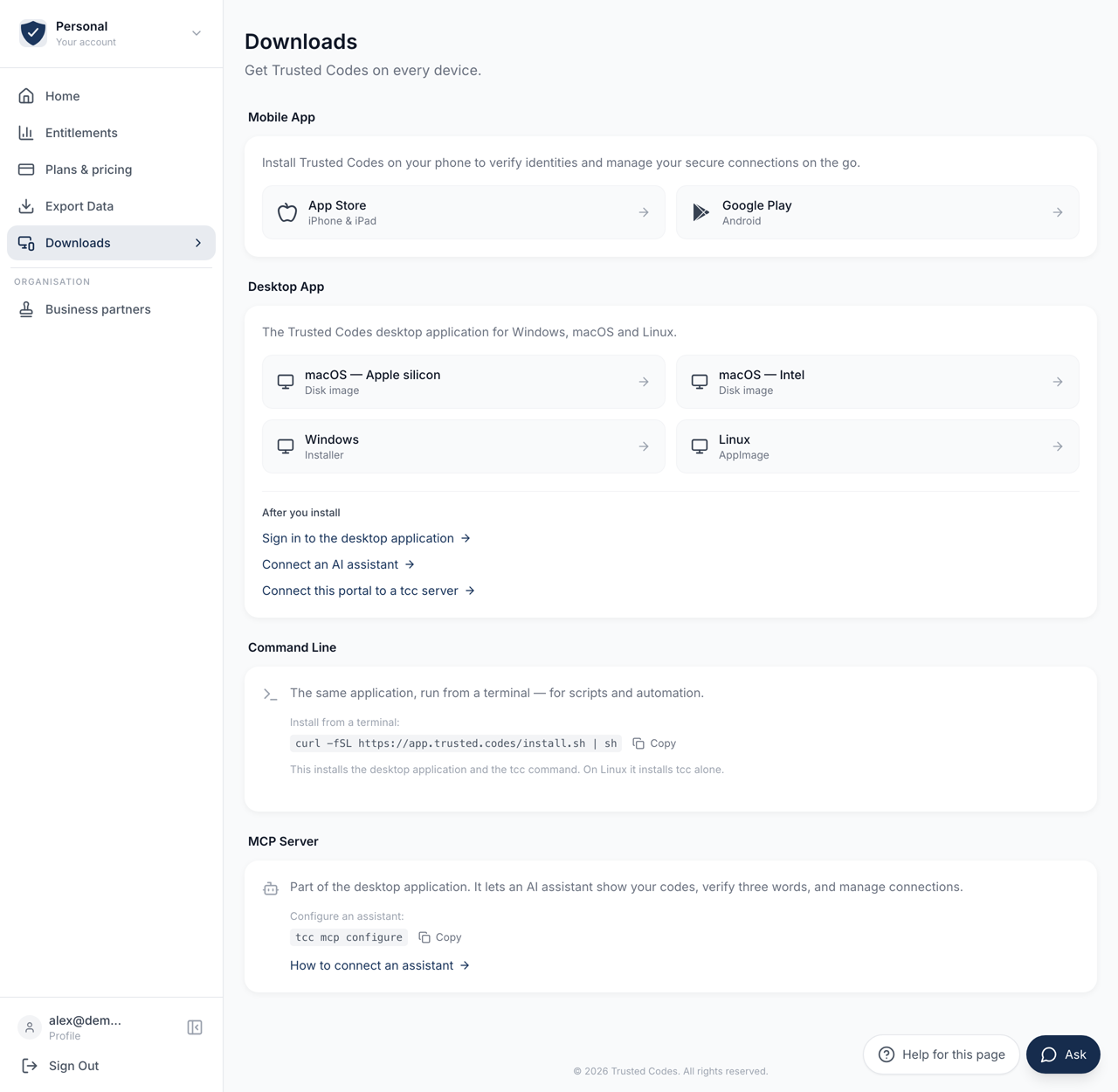 1234
1234- 1Sign in on the phone with the same address you used here. A different address makes a different account.
- 2Four builds: macOS for Apple silicon, macOS for Intel, Windows and Linux.
- 3The same application run from a terminal. The section carries the line to paste into one.
- 4Part of the desktop application. One command sets up an AI assistant.
One page per way of running Trusted Codes. The heading says it: “Get Trusted Codes on every device.”
What you see depends on your account, and the rule is worth knowing before you read on.
Hidden, Not Locked
Section titled “Hidden, Not Locked”A section your account does not include is not shown at all. There is no greyed card and no badge saying what it would take to have it.
A control you cannot use teaches you nothing and invites a click that can never work. So if you see only Mobile App, your account holds only the mobile app, and the page is complete as it stands.
Mobile App
Section titled “Mobile App”Always shown, on every account. The app is free and every account has it.
Two buttons: App Store for iPhone and iPad, Google Play for Android.
Install the app and sign in with the same address you use here. A different address makes a different account.
Desktop App
Section titled “Desktop App”Shown when your account includes the desktop application.
Four builds, because macOS is two files:
| Build | What you get |
|---|---|
| macOS — Apple silicon | A disk image, for a Mac with an M-series chip |
| macOS — Intel | A disk image, for an Intel Mac |
| Windows | An installer (.msi) |
| Linux | An AppImage, which runs on most distributions |
Take the one that matches your machine. A Mac built for the other chip will download and then refuse to start, which looks like a broken file rather than the wrong one.
The Version Number
Section titled “The Version Number”A version sits under the description — Version 1.3.9, for example.
It is read from the same signed document the downloads themselves are published beside, at the moment you open the page. It is therefore always the version the buttons will give you, not the version this page was written against. If no number appears, the document could not be read; the buttons still work.
After You Install
Section titled “After You Install”Three links sit under the buttons.
Sign in to the desktop application opens the sign-in instructions. The desktop application uses the same account as the phone and this portal. Sign in with the same address.
Connect an AI assistant opens the MCP instructions — see below.
Connect this portal to a tcc server is shown to organisation administrators. It goes to Settings, where this portal is pointed at a copy of the desktop client that runs as a server, for verification and sealing. It is not needed to use the application on your own computer.
The desktop application is configured inside its own window, under Settings. This page does not link into it: the phone application answers the same kind of link, and a link that may open the wrong one is worse than no link.
Command Line
Section titled “Command Line”Shown when your account includes the command-line client. It is the same application run from a terminal, for scripts and automation.
The section carries a line to paste into a terminal, and a Copy control beside it:
curl -fSL https://app.trusted.codes/install.sh | shWhat that installs. On macOS and Windows it installs the whole desktop
application, and adds the tcc command beside it. On Linux it installs tcc
alone. It is one program either way: the window and the command are the same
binary, on the same account, with the same connections.
Every download it makes is checked against a signed release document before it is opened. A file that does not match is refused rather than installed.
On a development portal a further line appears: the program you install
talks to production. Start it with --env dev to use the development service.
There is no separate development build to install — the environment is chosen
each time the program runs.
MCP Server
Section titled “MCP Server”Shown when your account includes the MCP server.
It is part of the desktop application. There is nothing else to download and no separate account. It lets an AI assistant show your codes, confirm three words somebody has read to you, and manage your connections, without you leaving the conversation.
On a Mac, the section shows the command that connects Claude Desktop, with a Copy control. Quit Claude Desktop, run the command in the Terminal, then open Claude Desktop again:
"/Applications/Trusted Codes.app/Contents/MacOS/tcc-desktop" mcp configure claude-desktopTrusted Codes must be in the Applications folder. For Claude Code and Cursor, the full instructions below give the commands. On Windows and Linux, a later version of the app connects for you.
Connect an AI assistant opens the full instructions, including what the server deliberately refuses to do — it cannot delete your account, move an organisation, or sign anything over the network.
Returning to the App
Section titled “Returning to the App”If you opened this page from the mobile app, a Return to App link sits at the bottom and hands you back to it.
Where the Store Links Point
Section titled “Where the Store Links Point”The two store buttons read their addresses from the server rather than from the page, so they always point at the release we are currently shipping. You do not need a fresh copy of this page to get a current link.