

Overview
Who Sees It
Section titled “Who Sees It”Overview is the first entry in the menu, and it is offered to anyone signed in to an organisation. It is not offered to a personal account, because a personal account has no organisation to count.
The numbers on it need more. They appear for a member whose role may see reports or may manage people. A role with neither sees the heading and nothing below it.
Where It Is
Section titled “Where It Is”The first entry under Organization in the menu. It is also what opens when you switch into an organisation from your personal account.
What It Shows
Section titled “What It Shows”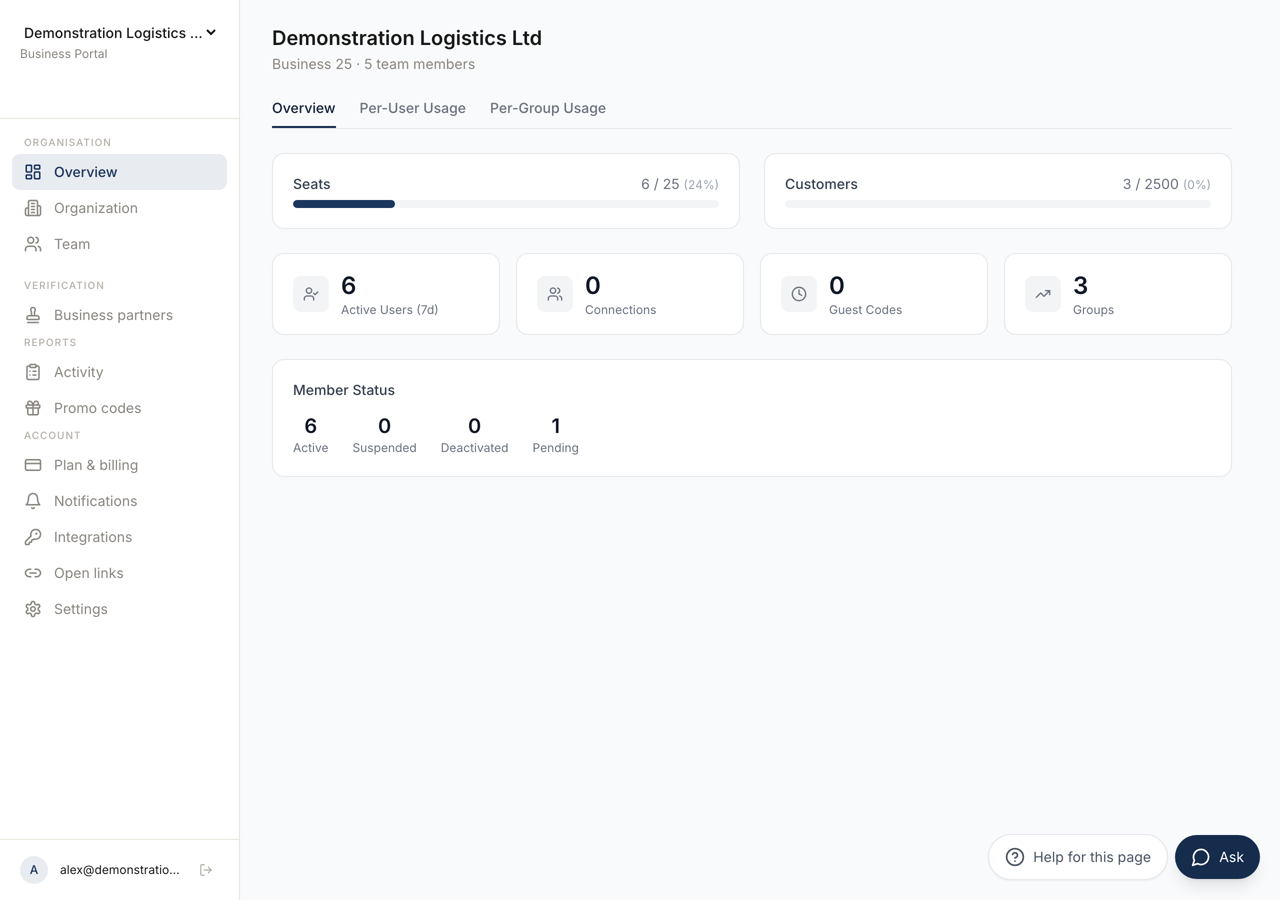 1234
1234- 1The organisation's own name, with the plan it is on and how many people belong to it.
- 2The usage report. Per-user and per-group break the same figures down.
- 3How many of the plan's seats are in use. It fills as you invite people.
- 4Everybody in the organisation by state, including the ones who have not accepted yet.
Set up your organization sits above the report while a row is open: name and language, invite your team, install the app, connect with a colleague, and compare the codeword with a colleague. The server checks each row against what really happened, and the last three are your own steps. While the set-up is unfinished the rows lead back into it. The list leaves for good once every row is done. See Setting Up the Organisation.
Above every page, two notices can appear. One asks for the data processing agreement when your organisation has not accepted it. The other names the end of a free trial in its last four days, for the owner.
The heading is the organisation’s own name. Under it sits the plan the organisation is on, and how many of its members are active.
Below that is the usage report, in three tabs.
Overview counts the organisation as a whole: Seats, Customers, Active Users (7d), Connections, Guest Codes, Groups and Member Status.
Per-User Usage lists every active member with their Role, Groups, Connections, Guest Codes and Last Active. When there is nobody to list it says No active members found.
Per-Group Usage lists each Group with its Members, Connections, Guest Codes and Active (7d) count. With no groups it says No groups created yet.
Why a Dash
Section titled “Why a Dash”Where a member count would need a permission your role does not carry, the page prints a dash rather than a number.
This is deliberate. Zero would be an answer, and a wrong one. A dash says the number was not available to you, which is a different statement.
Personal Accounts
Section titled “Personal Accounts”If you reach this page on a personal account rather than an organisation, it says so instead of drawing an empty organisation. The heading reads Personal account, the plan reads Free plan, and the explanation is that the console manages an organisation, which your account does not have yet.
The button below it, See plans, leads to the account pages where a plan is bought. That purchase creates the organisation.
Where to Go Next
Section titled “Where to Go Next”The counts are a summary. The pages behind them are where anything changes.
Seats and plan: Plan and Billing.
Members and roles: People and Roles.
Groups and what each group allows: Organisation and Groups.
The log of what has actually been done: Activity.