

Device Management
Where It Is
Section titled “Where It Is”Settings → Manage account → Devices and sessions. Manage account opens your account portal in a browser, already signed in, and you remove devices and end sessions there. If your account is on your organisation’s own server, Settings → Devices & sessions opens this screen in the app instead.
What This Shows
Section titled “What This Shows”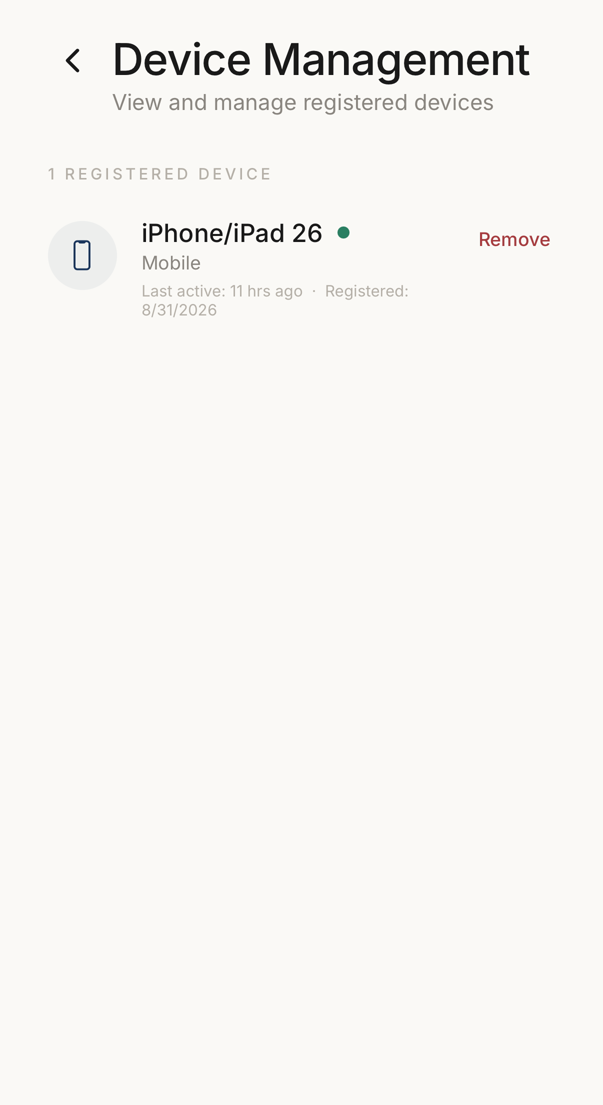 12
12- 1Every device registered to your account, with its platform, when it was last used and when it was registered.
- 2Removes that device. It has to register again before it can reach your account.
All phones, tablets, and computers where your account is active.
Each entry gives the device type as an icon (mobile, web, desktop), the platform and version (iOS, Android, and so on), the last active time, the registration date, and the status as a coloured dot (active, pending, revoked).
The header shows the total device count.
Every plan includes this screen. The free plan allows 2 devices.
Removing a Device
Section titled “Removing a Device”Tap Remove next to the device and confirm. The app revokes access at once and ends that device’s sessions, so it can no longer see your codes.
To use that device again, sign in on it as you would on a new device.
“No room for this phone”
Section titled ““No room for this phone””Your account can use a fixed number of devices. When all of them are taken and you sign in on another one, the app says so at once and that phone shows no codewords until there is room.
- On any signed-in device, open Settings → Manage account → Devices and sessions. On the new phone, the message has a button that opens that page
- Remove a device you no longer use
- Close the app on the new phone and open it again
The list often holds devices you have forgotten: a phone you replaced, or a test install. Removing one of those costs nothing.
Lost or Stolen Device
Section titled “Lost or Stolen Device”Act quickly.
- Remove the device from this screen
- Regenerate your recovery code (Settings → Security & recovery → Recovery Code) if the thief could reach the words
- Review your connections for suspicious activity
With the app lock on, the thief cannot reach your codes without your face, fingerprint or device passcode, and cannot reach your data without your recovery code.