

Create a Connection
What This Screen Does
Section titled “What This Screen Does”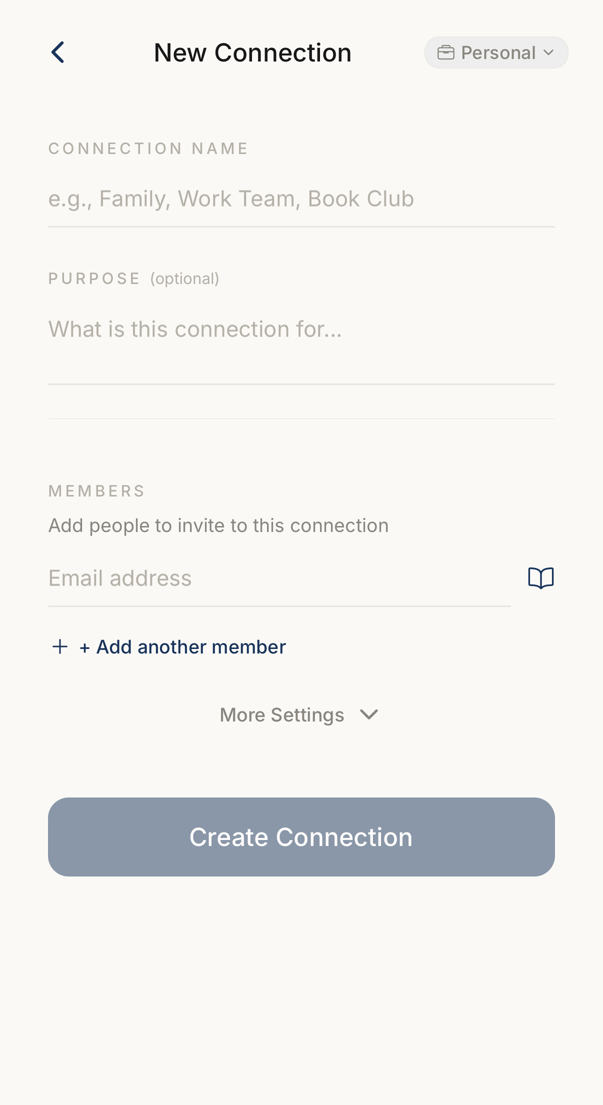 123
123- 1The name of the connection. Every member sees it.
- 2One row per person, each with an email address. Add another member adds a row.
- 3Creates the connection and sends every invitation in one go.
Here you create a connection with one person or with several, and invite everyone at the same time.
Enter a name, which is required, add the email addresses, and tap Create Connection.
To add someone to a connection that already exists, create a new connection with them instead. The member list of an existing connection cannot be added to from the app.
Connection limits apply. Your People describes what happens when you reach your allowance.
Adding Members
Section titled “Adding Members”Each member needs an email address. Type it into the text field, or tap the book icon to take it from your contacts.
+ Add another member adds a row. The red X removes one, and the last remaining row has no remove control.
The screen catches a duplicate address for you.
Hitting Submit
Section titled “Hitting Submit”Tapping Create Connection creates the connection on the server and sends the invitations. A green checkmark appears beside each address that went out, and anything that failed is shown so you can correct it and try again.
You need a network for this.