

Your Dashboard
What It Shows
Section titled “What It Shows”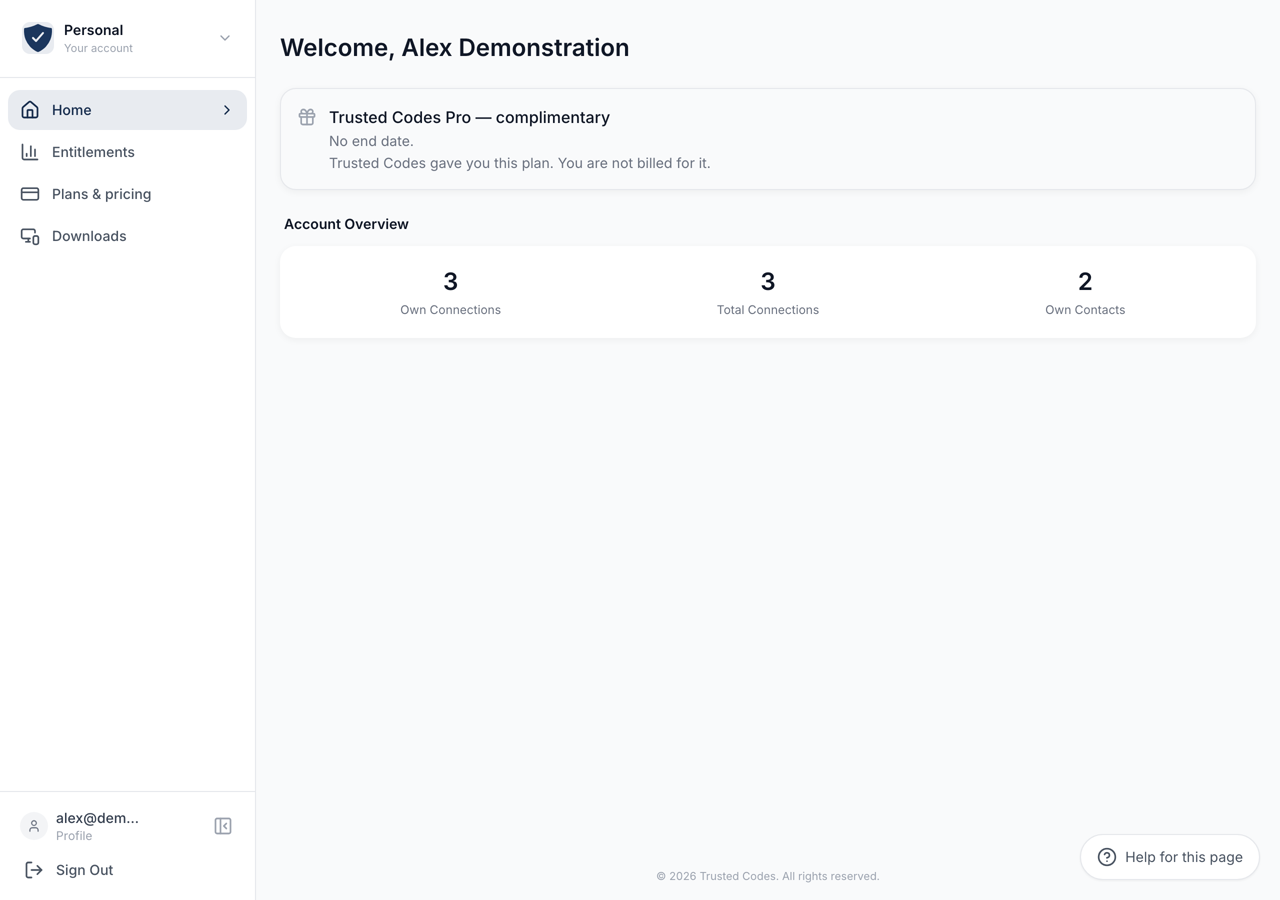 123
123- 1Your plan and when it ends. A plan Trusted Codes granted says so and is not billed.
- 2The connections you created, the connections you are in, and the people in your own.
- 3Your own pages. They stay where they are when you switch into an organisation.
The dashboard greets you by name and gathers what is worth knowing at a glance. Most of it only appears when there is something to say, so a healthy account sees a short page.
Account Overview
Section titled “Account Overview”Three figures, shown once the account has a mobile device on it.
Own Connections counts the connections you created. Total Connections counts those plus the ones you joined at somebody else’s invitation. Own Contacts counts the people in the connections you created, each person once, however many of your connections they are in.
The figures come from the server, so they match what the app shows.
Quick Actions
Section titled “Quick Actions”A list that appears only in a narrow window, where the menu is behind the button at the top. On a wide screen the same destinations are in the sidebar and this section is not drawn at all — so if you are looking for it on a laptop and cannot find it, it is not missing. Sign Out is the last row of it.
The rest are cards, each opening a page.
App Functionality opens Usage and Limits. Contact Me Settings opens Contact Us. Export Data opens Export Your Data and appears only when your account includes the export. Change Plan opens Plans and Prices and appears only when your account includes billing.
Setting Up the App
Section titled “Setting Up the App”Until a new account is fully set up, the dashboard shows one card with four steps: account created, install the app, connect, first check. It shows the one action that fits the device you are on — the store button on a phone, QR codes for the phone camera on a computer, and the desktop application when your plan includes it.
If somebody invited you, the card is called Your connection with that person and follows your connection with them: it says when the connection is being set up, and when the other person still has to confirm it. Step 2 names the way you signed up, for example “Open the app and tap Continue with Apple”.
Hide this guide removes the card on this browser. The card shows only in the first two weeks of an account and disappears once everything is done. An older account sees the earlier three-step card until it has signed in on a phone.
Notices
Section titled “Notices”Apple Private Relay Detected appears when your sign-in address is one of Apple’s relay addresses. Contacts cannot find you at it and some messages will not arrive. Add Real Email takes you to Email Addresses; Dismiss hides the notice.
Account Suspended appears when a payment failed. Update Payment Method opens the payment portal.
A grace period notice appears when your usage is above what your account allows — after a trial ends, after a failed payment, or after a move to a smaller plan. It names the figure, the allowance and the days left. Open App to Reduce opens the app so you can remove what is over the line. Nothing is deleted when the days run out; some functions become restricted until the figure is back under the allowance.
A complimentary notice appears when Trusted Codes gave you the plan. It carries the end date, it does not renew, and you are not billed for it.
Where the Billing Record Lives
Section titled “Where the Billing Record Lives”Invoices, the card and the cancellation are held by the payment provider, and the dashboard opens it in a new tab. Three controls lead to the same place: Update Payment Method on the suspended notice, Upgrade Plan on a notice about a term running out, and Change Plan among the quick actions.
A complimentary plan has no payment record behind it, so those controls go to Plans and Prices instead.