

Your Home Screen
What You See Here
Section titled “What You See Here”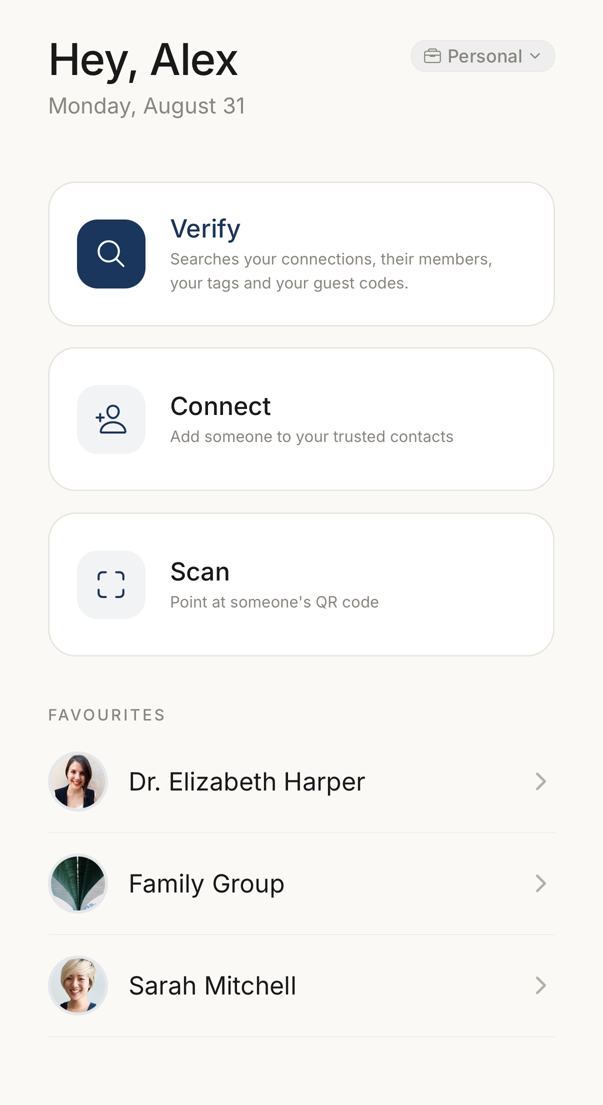 123456
- 1Your name and today's date. The app greets whoever the account belongs to.
- 2Personal, or the name of a business context. Tap it to move between them.
- 3Verify searches your connections, the people in them, your tags and your guest codes.
- 4Connect invites somebody, by QR code in the room or by a link.
- 5Scan reads someone else's QR code with the camera.
- 6Up to five connections you marked, A to Z, one tap away.
A greeting with your first name sits at the top left. At the top right there are two controls: the beacon glyph, which opens your own published word and its on/off switch, and the account chip, which shows the account or organisation you are working in and switches between them.
Under that sits the Verify portal, the large button in the middle of the screen, with Connect and Scan below it. At the bottom you get up to five favourites and an All link to the full list.
There is no notification bell on this screen. Your inbox is Settings → Notifications, and the Settings tab carries a dot when something is unread.
The Verify Portal
Section titled “The Verify Portal”Tap Verify and the button opens into a search field.
Type or speak a codeword you were given. The app searches the connections and guest codes held on the device and names the match. Nothing is sent to a server, so this works with no network.
If nothing matches, the word does not belong to anyone you hold. Treat that as a failed verification.
Three words that are exactly one member’s codeword open that member. An earlier codeword checks too — by default only the one just before the current one — and the member’s sheet then says that it is no longer current and when it ended. When some connections cannot be checked on this device yet, the app says so instead of reporting no match.
Voice Input
Section titled “Voice Input”The microphone sits inside the search field. Tap it and say the word.
The voice language has its own selector beside the microphone. It is separate from your app language, so you can dictate in one language while reading the interface in another.
Connect and Scan
Section titled “Connect and Scan”Connect opens a sheet with a QR code for the person in front of you to scan and a share link for everyone else, which makes it the quickest way to add someone you are standing next to.
Scan opens the camera. It reads connection codes and guest codes, and it can collect several scans in one session and report them together.
The Tabs
Section titled “The Tabs”| Tab | What it holds |
|---|---|
| Home | This screen. |
| People | Everyone you can verify. |
| Codes | Guest codes, seals and beacons you follow. |
| Settings | Your account, preferences, security and support. |
All four tabs are always present. What each of them holds still depends on your account.