

Settings
The Top of the Screen
Section titled “The Top of the Screen”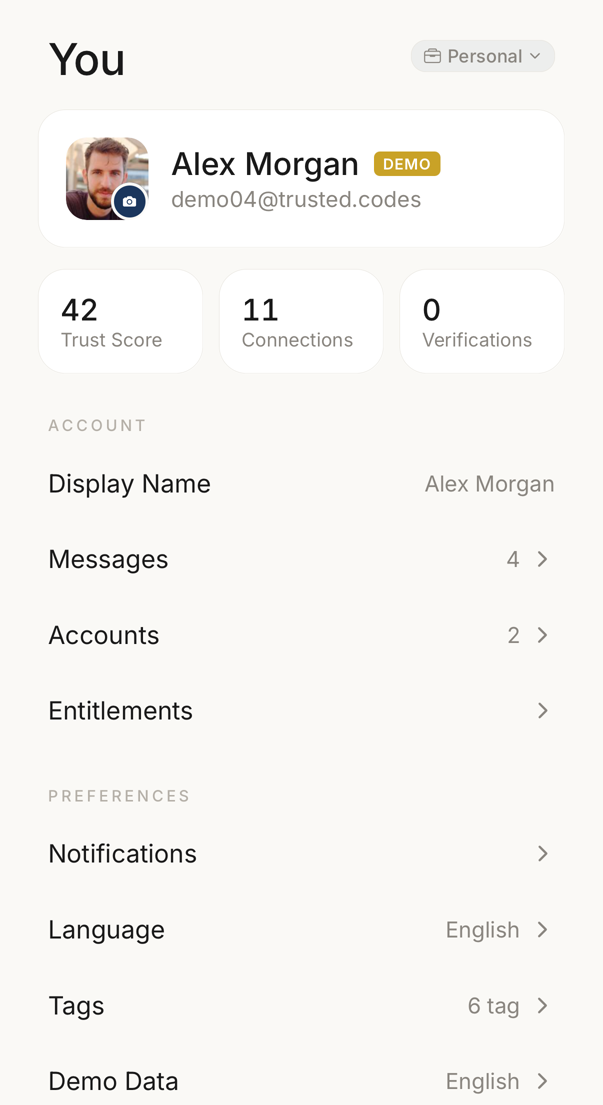 1234
1234- 1Your picture, your display name and the address you signed in with.
- 2Your trust score, how many connections you have, and how many verifications you have made.
- 3The name your connections see. Tap the row to change it.
- 4The language the app is in, and the language your codewords come from.
The block at the top holds your avatar, your display name and the email address you signed in with. Tap the avatar to change your photo, or the name row to change your name.
Beside them stand three numbers: your trust score, your connections and your verifications. Tapping the trust score opens the detail behind the number. Tapping the verifications opens your verification log in your account portal.
Account
Section titled “Account”| Row | What it does |
|---|---|
| Manage account | The first row. Opens your account portal in a browser. There you find your plan and what you have used, your notifications, your email addresses, AI API keys, auto-accept, the verification log, your API tokens and the data export. |
| Display name | Shows the name other people see, and lets you change it. |
| Messages | Opens your inbox. The row carries the unread count. |
| Contexts | Lists every workspace you can switch to, grouped by the account it belongs to; here you rename a workspace, sign out, remove an account from this device, or add another. |
Manage account signs you in to the portal with a one-time link; you do not type a password. Without a network connection the row stays on the screen, dimmed, and says that it is not available offline. The portal needs an email address to sign you in; an account without one sees that on the row.
If your account is on your organisation’s own server, there is no Manage account row. The rows Entitlements, Notifications, AI API Keys, Auto-accept, Verification log & export and Export Data then open their screens in the app.
Tags and presets have no row here: you edit them from the screens that use them.
Device
Section titled “Device”| Row | What it does |
|---|---|
| Language | Sets the language your codewords are drawn from. |
| Design | Switches the visual variant of the app, where your account includes a choice. |
| Concierge | Which gesture on the round Home button writes and which talks, and whether the notice of what the Concierge sends appears. Shown only where your plan includes the Concierge. |
| Face ID & app lock | Whether the app asks for Face ID or a fingerprint, and after how long away. |
| Device Settings | Summarises what the app may use on this device: notifications, camera, microphone, biometrics. It reports the state, and the switches themselves live in your phone’s own settings. |
| Show in address book (Android) | Offers a Trusted Codes row inside your phone’s contacts. |
| Full Refresh | Shows when this device last synced, and opens a full reload of this device’s data. |
Security
Section titled “Security”| Row | What it does |
|---|---|
| Security & recovery | Opens a hub rather than a single setting. Inside it you find Recovery Code, Codeword Change, the signing switch with its pause options, and the Danger Zone that holds Delete Account. Your email addresses are under Manage account. |
| Devices & sessions | Only for an account on your organisation’s own server: lists every device signed in and every registered device. Every other account finds this list under Manage account → Devices and sessions. |
The rows here follow your plan. In an organisation, your administrator decides which of them you see.
Support and Signing Out
Section titled “Support and Signing Out”| Row | What it does |
|---|---|
| Help & tutorials | Opens this help centre. |
| Leave feedback | Sends us a problem or an idea. |
| About | Shows the version and the legal links, and holds Tutorials (runs a guided tour again). |
At the bottom, Sign out ends the session on this device only, and leaves your account untouched. Deleting the account is deliberately somewhere else: Settings → Security & recovery → Danger Zone.