

Settings
Who Sees It
Section titled “Who Sees It”Settings is offered to a member whose role may manage roles and the organisation’s settings. The same permission carries Integrations and Notifications.
Deleting the organisation needs more than that. It is offered to the owner alone, and the check is made on the server rather than in the page.
Where It Is
Section titled “Where It Is”Under Account in the menu. The page has three tabs: Organization, Public page and Security.
Organization
Section titled “Organization”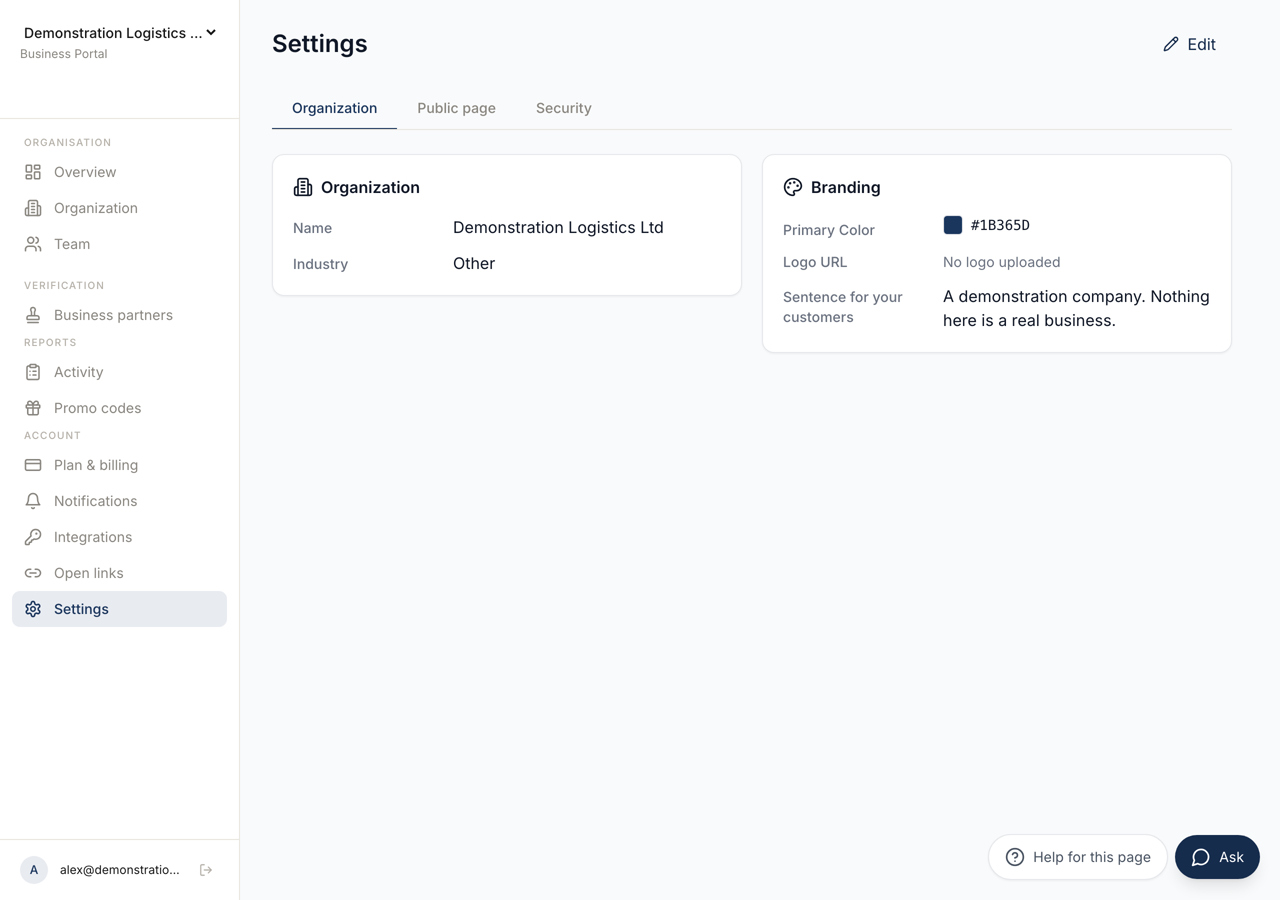 123
123- 1The organisation itself, its public verification page, and the security settings.
- 2Unlocks the fields. **Save** stores them.
- 3What a reader sees when they check a message from you. One line of plain text, stating a fact, with no web address in it.
Edit unlocks the fields, and Save stores them.
Name is the organisation’s own name, shown wherever the organisation appears.
Industry is the sector you work in, and it is not decoration: it selects the trust scoring your verification pages use.
Branding holds a Primary Color, a Logo URL and a Sentence for your customers.
That sentence appears on your public verification page and in verification emails, so it is written for a reader who is checking whether a message is really from you. The form shows the example: a bank saying it uses Trusted Codes to prove a message is from them. One line of plain text, within the character limit, no web address, and a bare domain counts as one. It must state a fact and may not ask the reader to buy anything.
Where the plan does not publish this appearance, the page says so and lets you set it anyway. It applies the moment the plan includes it.
Public Page
Section titled “Public Page”Your organisation can have one public verification page. Readers open it to check that a message really comes from you. This tab sets its address and decides whether it is online, in two numbered steps.
Verify your domain proves the domain is yours with a single DNS TXT record. The page gives you the record name and the record value and tells you how long the value stays valid. Add it at your domain, then confirm. DNS takes time, so a record not found yet is normal rather than wrong.
Choose the public address is the handle at the end of the page’s address. Availability is checked as you type, as Free or Already taken, and Reserve claims it.
Only then does Page is public become usable. Without a handle or without a verified domain, the switch says which of the two is missing.
Below this sits the badge for your web site: one line of HTML that draws a mark linking to your public page. Readers can then start from a page you control, rather than from a link somebody sent them. The panel warns if the image is not reachable at its published address, because the same line on your own site would show nothing either.
An answer for one of your organisation’s codes shows your verified website. The
reader is asked to compare it with the site they came from. If your own site
links straight to the verification page, the page can compare for them. Add
referrerpolicy="origin" to that link: the browser then tells the page which
site the reader came from, and nothing more.
Appearance sets what your public page shows in the part that comes from you: a header image and a logo you upload, a light background behind your name, official contacts (phone, an e-mail address on your verified domain, opening hours, address) and up to three links to pages on your verified domain or to your profiles on LinkedIn, XING, X, GitHub, YouTube, Facebook, Instagram, Bluesky or mastodon.social. Your sentence can be written once per language. The checks further down the page always look the same, so no company page can change them. These options come with plans that include custom branding.
A preview beside the form shows your part of the page as you type, before you save. Switch the language to see each sentence, and switch between desktop and phone width. The preview is only in this portal. Nobody else can see it.
Security
Section titled “Security”Require Biometric Authentication makes every member of the organisation use Face ID or a fingerprint to reach their account, with the passcode fallback disabled. The page notes that the feature needs a Business or Enterprise plan.
TCC Connection is where the companion application is connected, with an Endpoint URL and an API Token. Test Connection checks it before you Save. This is what makes Verify and Seals appear, and it is per device, so each machine is connected separately.
Deleting the Organisation
Section titled “Deleting the Organisation”The last panel on the Security tab deletes the organisation permanently.
It shows what would go: the members, the connections, the customers and the API tokens, by count. You must type the organisation’s name to confirm.
Two things block it outright. Active customers must be revoked first, and the panel offers to revoke them all and continue. A live subscription must be cancelled in the billing portal first, and the organisation can be deleted once the paid term has ended, on the date the panel names.
When it completes, you are told the organisation has been permanently removed, that members lost access, and that your personal account is untouched.