

Connection Details
What You See Here
Section titled “What You See Here”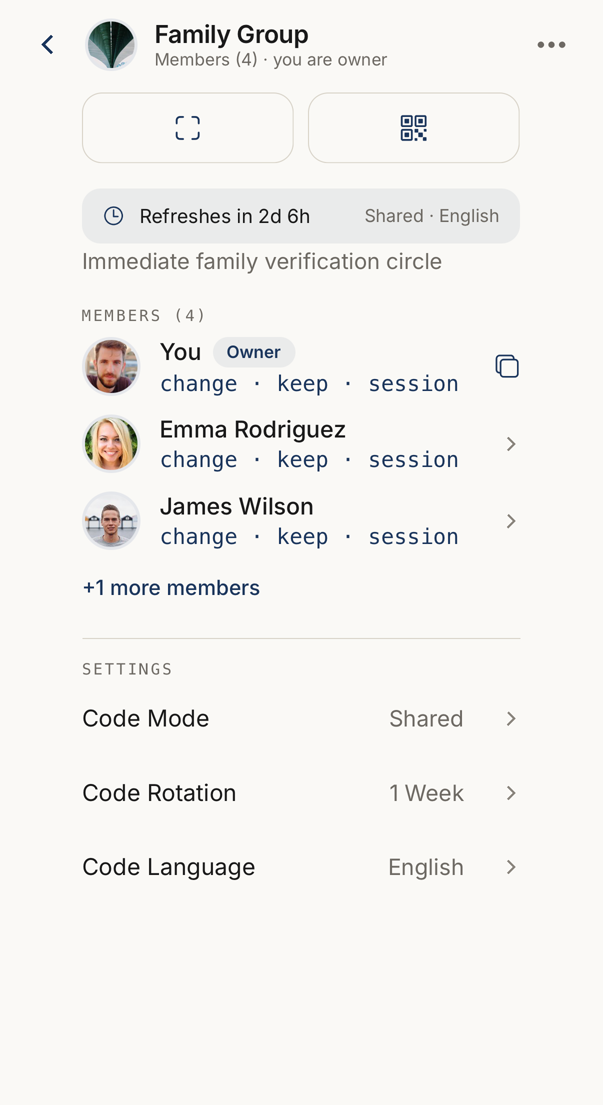 12345
12345- 1The connection's name, how many members it has, and whether you own it.
- 2Favourite, tags, renaming, and leaving or deleting the connection.
- 3How long the current words last.
- 4Every member with their own three words. Yours carries a control that copies them.
- 5The owner decides the code mode, how often the words change, and their language.
The top row carries back, the connection avatar, its name with the member count, and a ⋯ menu.
Under that sit three icon buttons. The filled one, with two people, is Check people in. The other two scan a QR code and show your own.
Then comes the member list. Each member row shows that member’s own codewords. Your own row also carries a copy control. Owners and members who have not accepted yet are marked.
Settings sit at the bottom and are visible to the connection’s owner only.
Last comes Code Rotation, with the time until the next rotation.
Codes Are Per Member
Section titled “Codes Are Per Member”There is no single code for the whole connection. Every member has their own three words inside it, and that is what you compare.
The words are computed on your device from data only the members hold, so they work with no network and cannot be produced by anyone outside the connection.
A member who has not accepted yet, or whose codeword has not finished syncing, shows a short explanation instead of words.
Verifying a Member
Section titled “Verifying a Member”Tap a member to open their sheet.
Ask them to read their three words and compare. Then record the outcome: It matches or It doesn’t. Both answers are written to your verification history, and a mismatch is the more valuable of the two, so do record it.
Your own row shows a QR code instead, so the other person can scan you.
The member sheet also shows the member’s role and trust score, and lets you bump their trust once a day.
Check People In
Section titled “Check People In”Check people in, the filled button with two people, starts a meeting check: a timed session for verifying several people in one sitting.
Any member of the connection can start one, not only its owner. Only one check runs for a connection at a time. If another member has already started one, the app names that member and does not start a second, and the button stays hidden until that check ends.
The screen lists every member with the words to Expect to hear from them. A member is checked in in one of four ways, and the list says which: words confirmed, by QR, marked present by you, or by tap when they confirmed it themselves.
It runs offline as well as online. A mark you make shows at once and is sent when the phone has a connection. When the session ends, the screen reports how many of how many were verified, who came by which method, and who did not appear. Open the verification log takes you to your history.
Starting a meeting check is part of some plans. If the button is absent, your account or your administrator decides whether it is available. In a business organisation, every check-in also goes into the organisation’s Verification Log, without the words.
When Somebody Checks You In
Section titled “When Somebody Checks You In”When another member runs a meeting check that includes this connection, its screen shows a card: Meeting check in progress, with a button I’m here and the time until the check closes.
Tap I’m here to confirm that you are present. The card then says You are checked in. A tap confirms attendance only. No words are compared, and the organizer sees that you checked in by tap.
You need no plan to check in. If the tap does not reach the server, the card says Could not check you in. Try again.
The ⋯ Menu
Section titled “The ⋯ Menu”| Item | What it does |
|---|---|
| Favourite | Pins the connection to the Home screen and to the favourites filter. |
| Tags | Your own private labels. |
| Edit (owner) | Changes the connection’s name, description and photo for everyone. |
| Customize (member) | Renames the connection for yourself only. Nobody else sees your version, and you can reset it to the owner’s original. |
| Delete (owner) | Asks for confirmation, then removes the connection for every member. |
| Leave (member) | Asks for confirmation, then takes you out of the connection. |
Owner Settings
Section titled “Owner Settings”These sit at the bottom of the screen, where only the owner sees them.
| Setting | What it controls |
|---|---|
| Code mode | How the words are derived for this connection. |
| Code rotation | How often they change. |
| Language | Which language the words come from. It applies from the next rotation. |
| Require biometric | Asks for Face ID or a fingerprint before the words are shown. |
Rotation, language and biometric are part of some plans. In an organisation, your administrator decides which of them you can set.