

Your People
Understanding the List
Section titled “Understanding the List”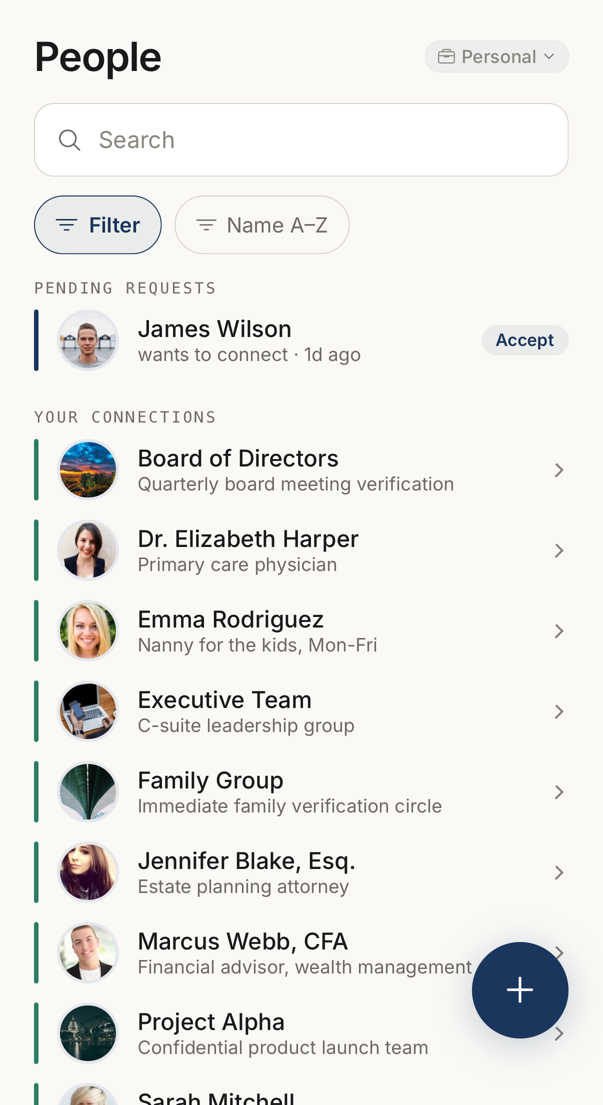 123456
- 1The context these people belong to. A business context keeps a list of its own.
- 2Searches the names in the list below.
- 3Filter by tag or property. Beside it, the readout says the list runs A to Z.
- 4Somebody who asked to connect. Accept moves them into your connections.
- 5Your connections, each one a person or a group.
- 6The plus button starts a new connection.
The People tab holds everyone you can verify.
The list is grouped in two. Pending Requests comes first, and holds the invitations sent to you along with the people who reached you through your personal page or a share link. Your Connections follows it. An invitation you sent that nobody has answered yet sits in Your Connections, marked as waiting.
Each row carries a state stripe on the left and a subtitle that says something useful: the member count, the sync state, or how long ago an invitation went out.
Codes Are Not in the List
Section titled “Codes Are Not in the List”The list shows names and states, never codewords. Open a connection and tap the person you are verifying to see their words.
If you arrived through a search, the matching words are shown with the result.
Search and Filter
Section titled “Search and Filter”The search field matches names, email addresses, tags and codewords, and it works offline.
Beside it, one Filter chip opens a sheet. The base choice (all, favourites, owned, or one tag) is exclusive. Properties and tags narrow it further and can be combined. Active filters appear as removable chips under the field, so you can see what is being filtered without opening the sheet.
Beside the filter a readout says Name A–Z. The list is always sorted that way; there is nothing to change.
Pending Requests
Section titled “Pending Requests”Someone who reaches you through your personal page or a share link appears under Pending Requests, beside the invitations other people have sent you. Approve or decline directly in the row.
Invitations you sent that nobody has answered appear in Your Connections, with the age of the invitation. You can withdraw one that is still pending, and you can re-invite when one has expired.
An invitation received from another Trusted Codes user opens a details screen with the sender’s trust score and account history before you accept.
Adding Someone
Section titled “Adding Someone”Tap +. Add to my Network asks which you want: A Contact, one person you invite, or A Connection, a named group. Choosing A Connection opens New Connection, where you give it a name, add one or more email addresses, and tap Create Connection.
How many connections and how many people you may hold is set by your account. When you are at the limit, the screen says so and creating is blocked until you remove something. In an organisation, your administrator decides the allowance.
When Your Allowance Changes
Section titled “When Your Allowance Changes”If your allowance drops while you are above the new limit, a grace period starts. During it, existing codes keep working, but you cannot create new connections. When it ends, codes are hidden until you are back under the limit.
Offline
Section titled “Offline”Codes are computed on your device from data only the members hold, so reading one needs nothing from the network.
| What you are doing | Needs a network |
|---|---|
| The list, the search, opening a connection | No |
| Reading and comparing codes | No |
| Creating a connection | Yes |
| Accepting an invitation | Yes |
| Changing settings | Yes |
Pull down to refresh once you are back online. The last sync time is shown at the bottom of the list.